Approval setup
Approval setup
In 2Click Accounting, an approval flow is a key feature for managing the approval of invoices and payments in the system. The approval setup page allows you to define how approvals are structured across users, groups, and flows - ensuring control, transparency, and compliance.
When you enter the page, four sections will appear, each with its own table:
Users
Approval groups
Approval flow
Cross company approval
Each section allows you to define minimum approval amounts - for either a user, an approval group, or an approval flow. Unlike previous versions, which used maximum amount limits, the October 2025 update introduces a minimum-based hierarchy, ensuring that approvals follow a structured escalation flow.
How minimum amounts work
The new approval logic is based on minimum thresholds, meaning each user or group can approve invoices starting from a specific minimum amount and up to the next approver’s threshold.
The first user in the approval chain should have no minimum amount (blank field). This user can approve all invoices up to the next user’s minimum limit.
The next user can approve invoices from their minimum threshold up to the next user’s minimum (or unlimited, if none is set).
The final user in the flow - with the highest minimum - can approve everything from that amount and above.
This system creates a clear escalation structure where smaller invoices are handled at lower levels, while higher-value invoices automatically move up the hierarchy for approval.
Amount limits
You can define a user’s minimum limit in one of three ways:
Inherit from Approval Group: By enabling Inherit from Approval Group, the user will automatically follow the group’s defined minimum threshold.
Custom minimum amount: Disable Inherit from Approval Group to specify a unique minimum threshold for the user. This amount represents the minimum invoice value that will be routed to this user for approval.
No minimum amount: Leave the field blank if the user should approve all invoices below the next user’s threshold.

What’s the difference between an approval group and an approval flow?
An approval group is a collection of users, each with their own (or inherited) minimum threshold.
An approval flow consists of one or more approval groups arranged in sequence. You can define whether the flow must follow a strict order, meaning invoices must be approved by each step in sequence.
Within a flow, users with overlapping approval responsibilities (e.g. same department but different approval levels) can be grouped together. The system will determine which user or group should approve based on their defined minimum thresholds
Users
The list of users in the approval setup is based on all active users created under the Users section.
Only active users can be assigned to groups or flows.
The table contains:
Name and email
Minimum approval amount
Inherit from approval group (Yes/No)
The system always checks all thresholds in the hierarchy. If a user’s minimum amount overlaps with another user’s range, the lowest applicable user will be prioritized.
Approval groups
An approval group is a set of users who share similar approval responsibilities or limits.

How to create an approval group
Go to Settings → Approval setup.
Click Create Approval Group.
Enter a group name (required).
Set a minimum approval amount (optional).
Select a user and click Add user (repeat as needed).
Click Save to confirm.
Delete group:
If a group has been created by mistake, click the red X in the overview to delete it.
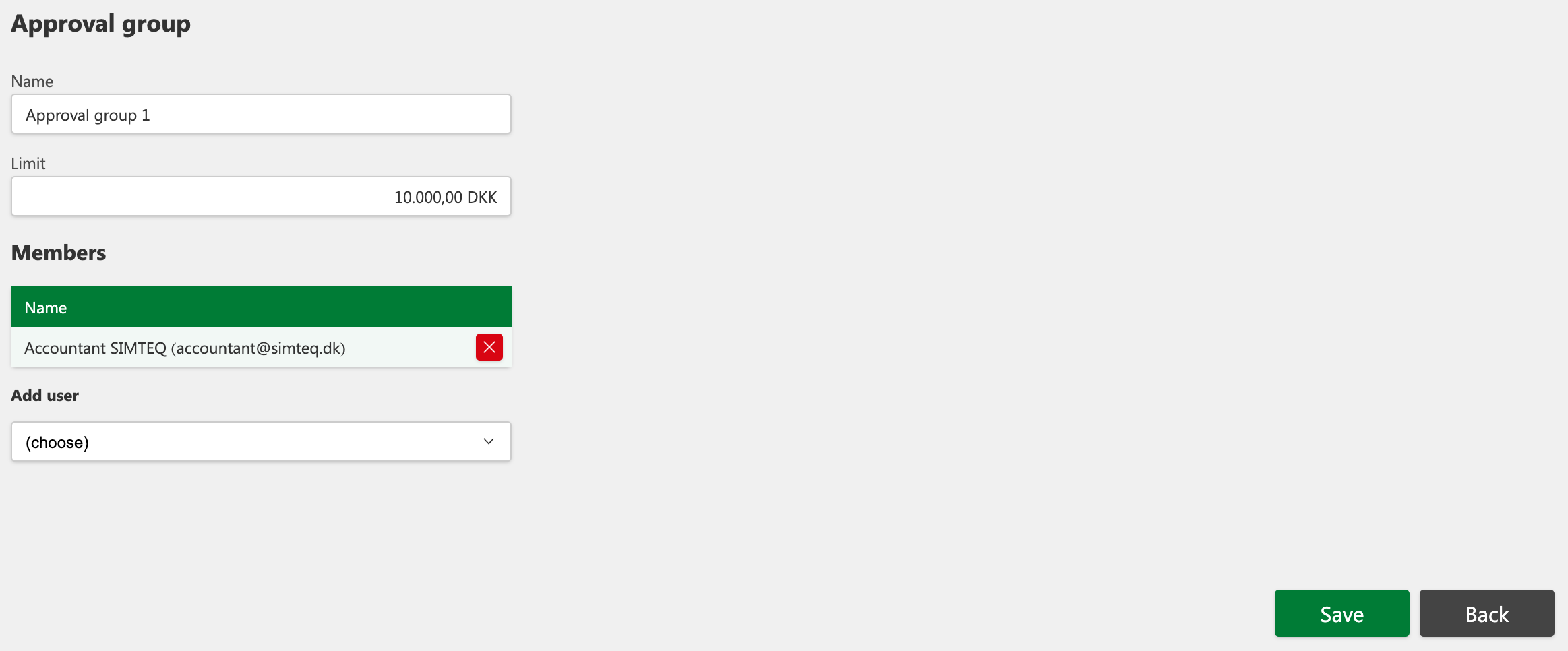

How to edit an approval group:
-
Go to Settings in the menu and then select Approval Setup.
-
Scroll down to the middle of the page.
-
Find the approval group you want to edit.
-
Click the Edit button next to the group.
-
Make the necessary changes to the approval group.
-
Click Save to save your changes.
If you undo the edit, you can click Back to cancel.

How to delete an approval group:
-
Go to Settings in the menu and then select Approval Setup.
-
Scroll down to the middle of the page.
-
Find the approval group you want to delete.
-
Click the "X" button next to the group.
-
Click Confirm in the pop-up window to confirm the deletion.
-
If you regret the deletion, you can click the X (Cancel) in the pop-up window to cancel the process.
Approval flow
An approval flow defines the sequence and logic by which invoices and payments are approved. Before creating a flow, at least one approval group must exist.
You can define multiple approval groups within one flow - each with its own minimum amount. This makes it possible to handle approvals for different thresholds without creating separate flows.
Prioritization
Each line in the flow represents a step, with information about the priority, group name, and minimum amount.
Use the up/down arrows to reorder the sequence.

How to create an approval flow
Go to Settings → Approval setup.
Scroll down to the Approval flow section.
Click Create approval flow.
Enter a name for the flow (required).
Choose whether to inherit from approval group or set a custom minimum threshold.
Enable Order if approvals must follow the sequence.
Select an approval group and click Add Step (repeat as needed).
Click Save to finish.
Delete group:
Click the red X next to the step to remove a group from the flow.
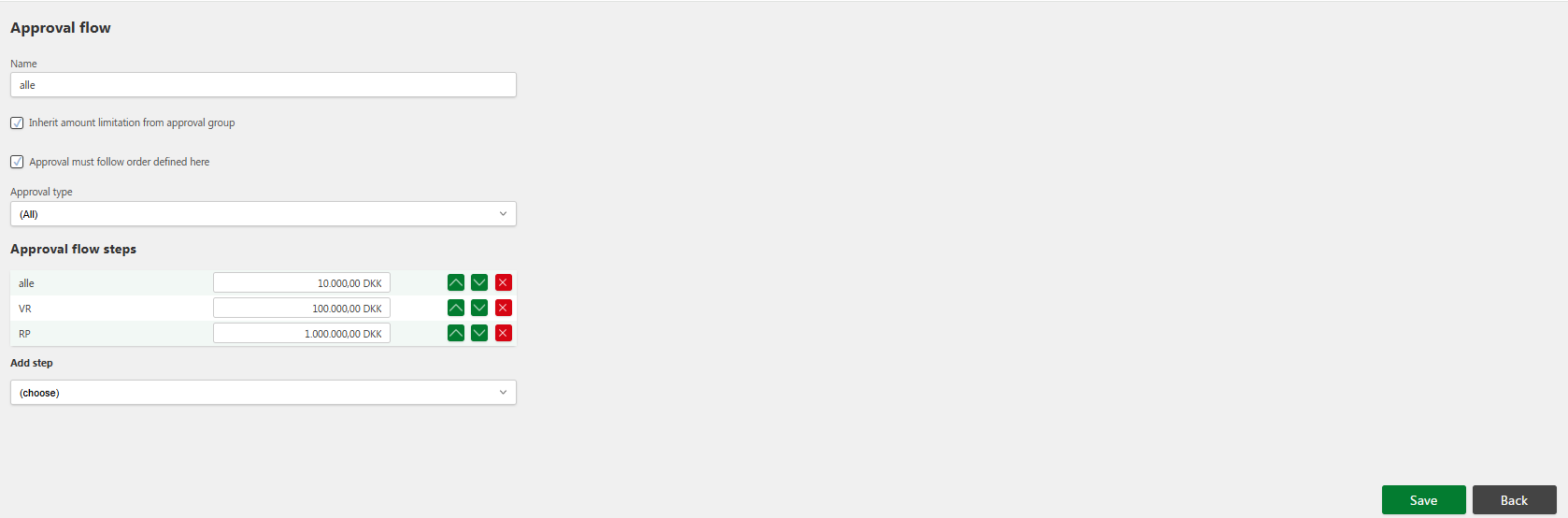

How to edit an approval flow
-
Go to Settings in the menu and select Approval Setup.
-
Scroll to the bottom of the page and find the approval flow you want to edit.
-
Click the **Edit button ** on the appropriate row.
-
Make the changes you want to the approval flow.
-
Click Save to confirm the changes.
If you undo the edit, you can click the Back button to undo the changes.

How to delete an approval flow
-
Go to Settings in the menu and select Approval Setup.
-
Scroll to the bottom of the page and find the approval flow you want to delete.
-
Click the X button on the appropriate row.
-
Click Confirm in the pop-up window to confirm the deletion.
If you regret the deletion, you can click on the "X" button in the pop-up window to cancel the deletion.
Cross company approval
Cross company approval allows you to define how invoices are approved across multiple companies within the same organization. This feature becomes available when Cross company approval is enabled in the general invoice settings.
This is especially useful for organizations with several related entities - for example, a hospitality group that manages multiple hotels under one ownership - where approvals are handled centrally.

What does Cross company approval do?
When enabled, invoices received in one company can automatically be routed to an approval flow in another company.
Each rule defines a link between selected ERP dimensions (e.g., department, job number, project manager), the receiving company, and the approval flow that should process the invoice.
For a rule to trigger, all ERP dimensions defined in the setup must match the data on the invoice. If any of them do not match, the invoice follows the standard approval flow within its own company.
Fields explained
The Cross company approval setup includes both ERP-based dimensions and 2Click Accounting system fields.
Fields:
Department (ERP dimension): Typically used for cost centers or departments.
Employee (ERP dimension): Used when approvals depend on a specific employee.
Job number (ERP dimension): Links to a project or job; must match the invoice data.
Project manager (ERP dimension): The person responsible for the project.
Tenant company (2CA standard): The company that receives and processes the invoice (required).
Approval flow (2CA standard): The defined approval flow that should process the invoice (required).

How to set up Cross company approval (this section will be moved to system settings, merging all approval settings into one)
Go to Purchase invoice → Settings.
Enable Cross company approval.
Click Save.
Go to the Cross company approval tab in the menu.
Click the green + icon to add a new rule.
Fill in the required fields and ERP dimensions.
Click Save to confirm.
Access requirements
The Cross company approval tab is only visible to users who have been granted access in User setup → Navigation. This ensures that only authorized users can create or modify approval relationships between companies.
Summary
By using the Approval setup module in 2Click Accounting, you can:
Structure invoice approvals by hierarchy and responsibility.
Define clear minimum approval thresholds for each user or group.
Manage approval flows across multiple companies and dimensions.
This ensures that invoices are approved by the right people, in the right order, and with full visibility across the organization - supporting efficiency, control, and compliance.
Button overview

Delete: used to permanently remove an approval group or flow.

Edit: Allows you to make changes to the user's spending limit, or edit an approval group or flow.

Move up in priority: Used to change the order of the approval flow by moving it up in the prioritization.

Move down in priority: Used to move the approval flow down in the prioritization.