Item
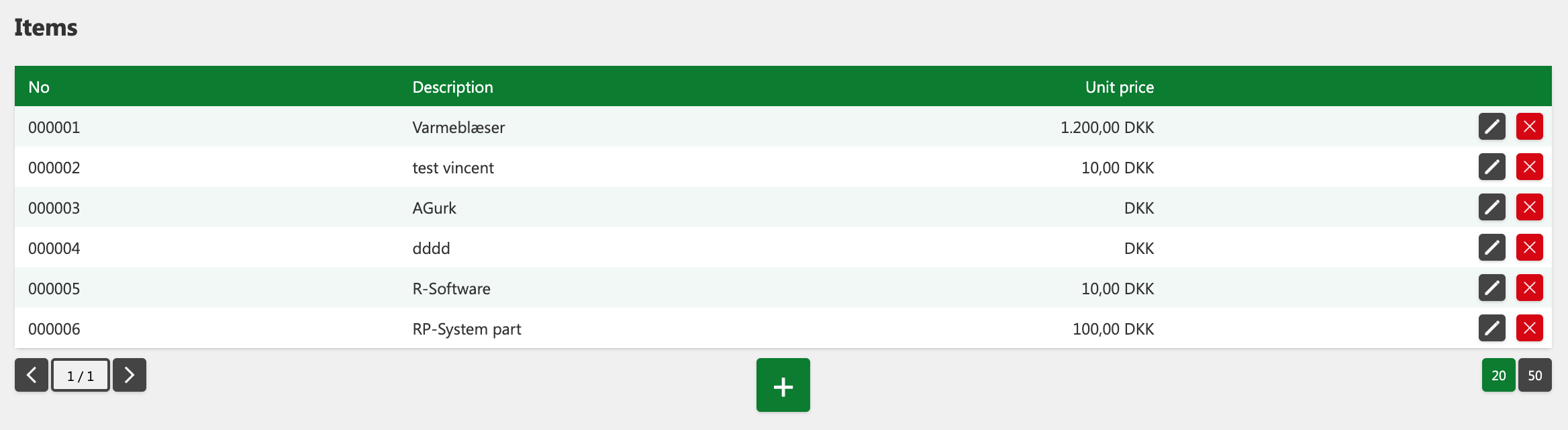
The item list contains all registered items that the company currently sells. This list provides a comprehensive overview of the items used for invoicing.
It is recommended to register items to save time when creating invoices. However, it is not a requirement to be able to create an invoice or credit note for a customer. It is possible to invoice a customer for an item that is not registered in the item list.
Example of an item list:
How to add a new item:
-
Click Sale from the menu, then click Item.
-
Click the + button below the table.
-
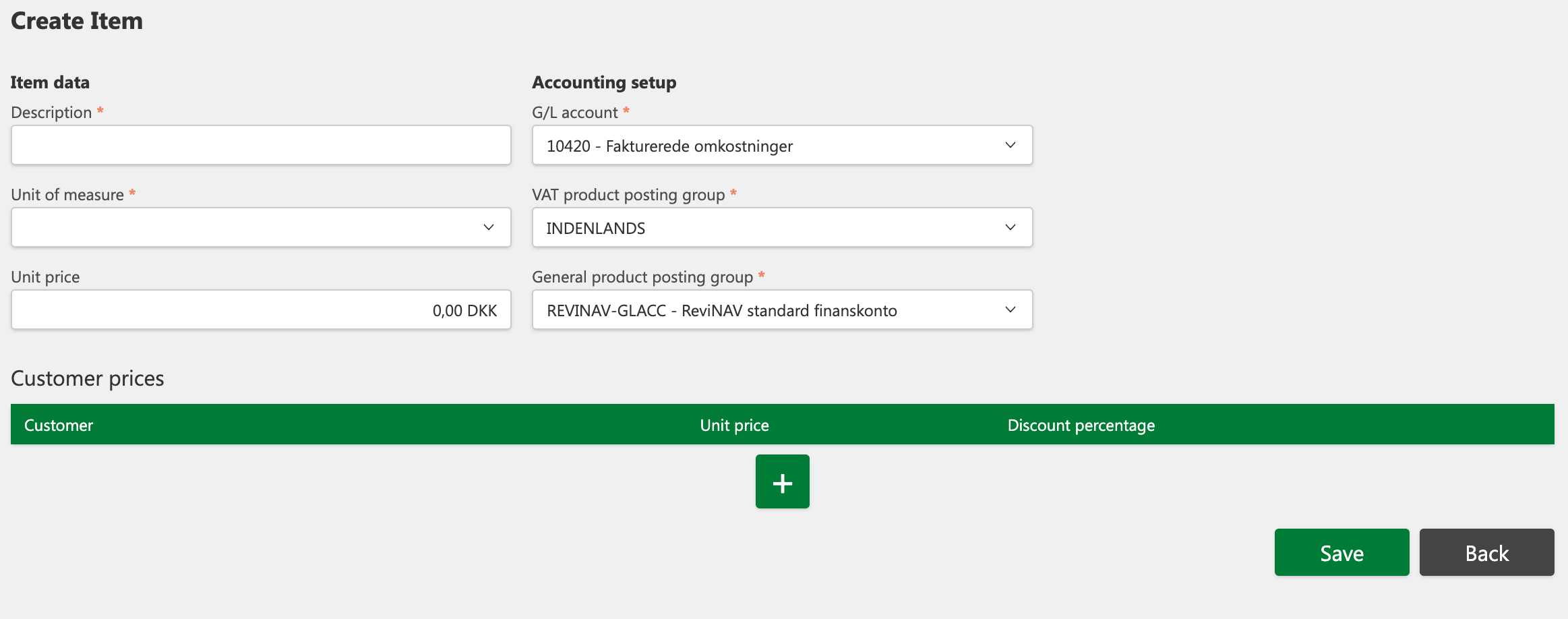
Enter values in the required fields (*).
-
Click Save.
If you regret creation, you can click the Back-button.
Create items
To create an item, you must fill in at least the following information:
-
Description
-
Unit of measure
-
Unit price
-
G/L account
-
VAT Product Posting Group
-
General product posting group

Navigation buttons and item display
Below the table you will find buttons that allow you to customize the display of the table to your liking:
-
The buttons on the left are used to navigate back and forth in the table.
-
The + button is used to create (Add) a new item.
-
The buttons on the right are used to select the display of the number of items in the table. The currently selected view is marked in green.
To edit an existing item
-
Click on Sales in the menu and select Item.
-
Find the desired item in the table.
-
Click the Edit button next to the item in question.
-
Edit the fields you want.
-
Click Save to save your changes.
-
If you regret your changes, you can click the Back button.

How to delete an existing item
-
Click on Sales in the menu and select Item.
-
Find the desired item in the table.
-
Click the X (Delete) button next to the item in question.
-
Confirm the deletion in the pop-up window by clicking the Confirm button.
-
If you regret the deletion, you can click the Back button.

Automatic invoice settings
When you set up a specific customer price for an item, there are often advanced settings for how billing should be handled, including automatic invoice settings. In this case, you describe functions that are used to define how the price for the customer is calculated and invoiced for an item. Here's an explanation of the different elements you mention:

1. Item to automatic invoice
This option allows you to define how billing should be processed when there's a special price for the customer. By selecting Item for automatic invoice, you specify whether an item should be invoiced automatically with a specific amount and which method to use.
2. Selecting the Billing Item – "Yes"
When you select YES for invoicing, it means that the system will automatically calculate and invoice a specific price for the customer on the item, based on the selected calculation methods and rules. This means that there is no need for manual entry of the invoice amount, saving time and minimizing errors.
3. Fixed or Advanced Customer Pricing
When you select YES, you can choose between two types of billing calculation methods:
-
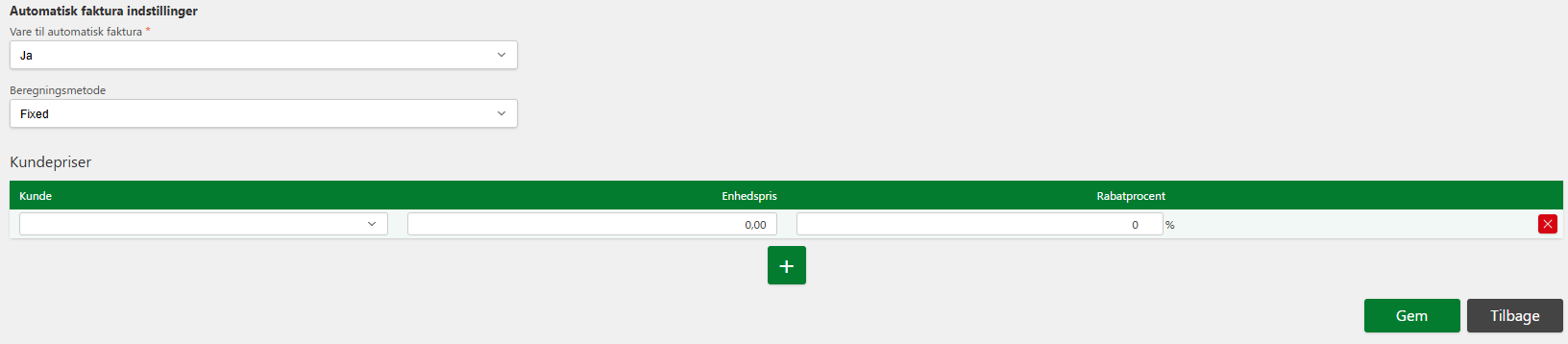
Fixed: This method means that the price of the item for that customer is set at a certain amount. When an order is created, the customer is billed the flat rate without any charge based on quantity, discounts, or other factors.
-
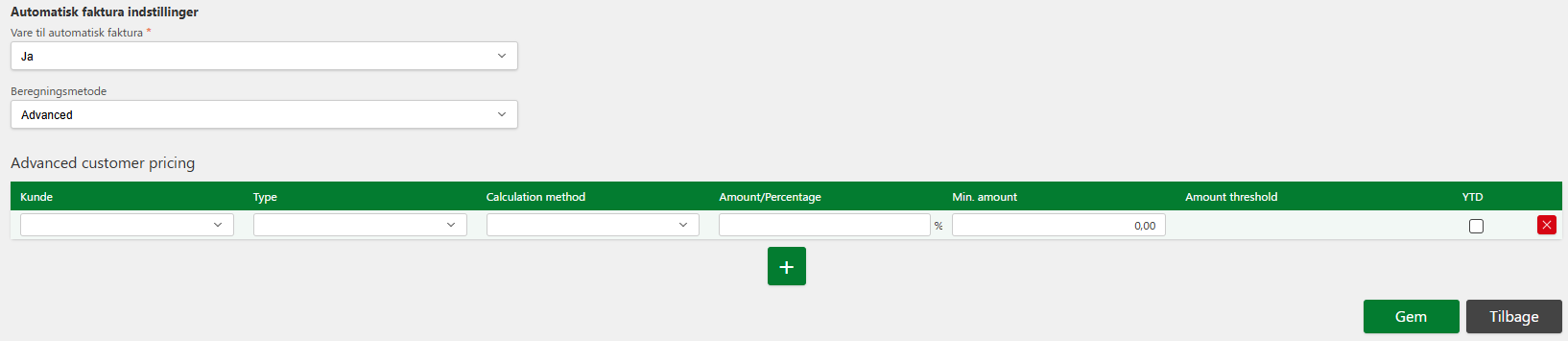
Advanced: This method allows you to define a more complex calculation, where the price can depend on several factors such as discounts, quantities, minimum amounts, or annual goals (YTD, Year-to-Date). This provides more flexibility for specific pricing settings for customers.
Advanced customer price calculation on an item
When you select Advanced as the calculation method, you can define the following parameters:
-
Customer: Here you specify which customer (or customer type) should use the specific price calculation. You can select one customer or a group of customers.
-
Type: This refers to the type of calculation to use for this customer price. It can be different types of calculation, such as a quantity discount or an annual settlement.
-
Calculation method: Here you can choose how the price should be calculated. For example, this could be based on a percentage of the standard price or a fixed amount. It can also be more complex methods that calculate the price based on a combination of factors such as quantity, discount, and so on.
-
Amount/Percentage: You can choose whether the calculation should be based on a fixed amount (Amount) or a percentage (Percentage). For example, you can choose to give the customer a discount of 10% of the price, or a fixed amount (e.g. $50).
-
Min. amount: This value defines a minimum amount for the invoice. If the calculation of the specific price for the customer is lower than this amount, the system will apply this minimum amount instead of the calculated price. For example, it can be useful if you want to ensure that all orders for a customer have a minimum amount, even if discounts or calculation methods might lead to a lower price.
-
Amount threshold: This specifies an amount threshold that can be used to define when the advanced calculation method should be applied. If the order value exceeds this limit, the advanced calculation will take effect. This can be used to offer specific prices when a customer orders a large amount of items.
-
YTD (Year-to-Date): This parameter allows you to calculate a price based on the total quantity that the customer has purchased during the year (Year-to-Date). If a customer has purchased a large amount of items throughout the year, you can give them a discount or a better price based on this. It can be useful for rewarding loyal customers or customers who buy in large quantities.
Fixed customer price calculation on an itemWhen you create an item, you also have the option to specify a customer-specific price or discount percentage.Note: The customer must be registered in the Customers submenu.
To set up a specific price or discount for a business
-
Click on Sales in the menu and select Items.
-
Find the desired item in the table.
-
Find the table for Customer prices and click on the + button.
-
Enter the relevant customer, unit price, and/or discount percentage for which the customer should receive the item.
-
Click Save.
If you regret your setup, you can click the Back button.
To delete a specific price or discount for a business
-
Click on Sales in the menu and select Items.
-
Find the desired item in the table.
-
Find the table for Customer Prices.
-
Find the individual customer in the table and click on the X (Delete) button.
-
Click Save.
If you regret your changes, you can click the Revert button.
Dimension setup on items
It is possible to set up the following on behalf of an item:
- Dimensions: If this feature is enabled in "Sales invoice settings", you can add dimensions for that item.
Button Overview

Edit: used to modify item details.

Bad: used to delete an item.
Navigation buttons: allows you to navigate back and forth in the table.

Displays: allows you to choose how many items are displayed per page.

+ (add): used to add a new item.

ConfirmandCancel: used to confirm or cancel an action, such as deleting an item, respectively.