Status
The Status section includes all purchase invoices, except those that have already been posted. This includes invoices that appear in both the "Received invoices" and "Approve invoices" sections.
Search field
An easy-to-use search field is available to quickly find specific invoices or information. You can search using the following parameters:
-
Vendor Name
-
Invoice number
-
Document number
The search field includes a small X, which allows you to quickly clear typed search text and start a new search.

Enhanced Search and Filtering
The enhanced search and filtering functionality is available across the Purchase Invoice module and can be used under Received Invoices, Approval, Archive, and Status. This allows users to quickly locate specific invoices by applying one or more filter criteria.
The following filter options are available:
-
Document Date – Filter invoices by the date stated on the invoice document.
-
Received Date – Filter invoices by the date they were received in the system.
-
Due Date – Filter invoices by their payment due date.
-
Awaiting Approval By – Filter invoices based on the user who is currently assigned to approve them.
-
Department – Filter invoices by the department they are associated with.
-
Employee – Filter invoices by the employee linked to the invoice.
In addition, a free-text Search field is available at the top of the page, allowing users to search across invoices using keywords such as vendor name, invoice number, or other relevant information.

How to use:
-
Navigate to the desired page: Purchase Invoice → Received Invoices / Approval / Archive / Status.
-
Enter a keyword in the Search field, or select one or more filter values from the drop-down menus.
-
Click the Select button to apply the filters.
-
The invoice list below will update to display only the invoices that match the chosen criteria.
To clear the filters and view the full invoice list again, click the ✕ icon in the Search field or reset the filter values.
In addition to filtering, the invoice list can be sorted by clicking on any of the three column headers:
-
Vendor – Sort invoices alphabetically by vendor name.
-
Invoice No – Sort invoices by their invoice number.
-
Received date – Sort invoices by the date they were received in the system.
Each column can be sorted in both ascending and descending order. Click the column header once to sort in one direction, and click it again to reverse the sort order. A small arrow next to the header indicates the current sort direction.

The difference between Status and Archive
The primary difference between "Status" and "Archive" is that "Archive" contains all completed invoices, while "Status" shows the invoices that are still awaiting to be completely posted. Actions on the invoices must be performed in their respective sections, depending on their status.
The difference between "Status" and "Archive" includes the following:
-
The buttons in the top right corner are not available in the "Status" section. (This also applies for "Archive", but not "Received" and "Approve")
-
For invoices that are pending approval, the invoice details will include information about who processed the invoice, the time of processing, and a list of other approvers who still need to approve the invoice, in addition to yourself.
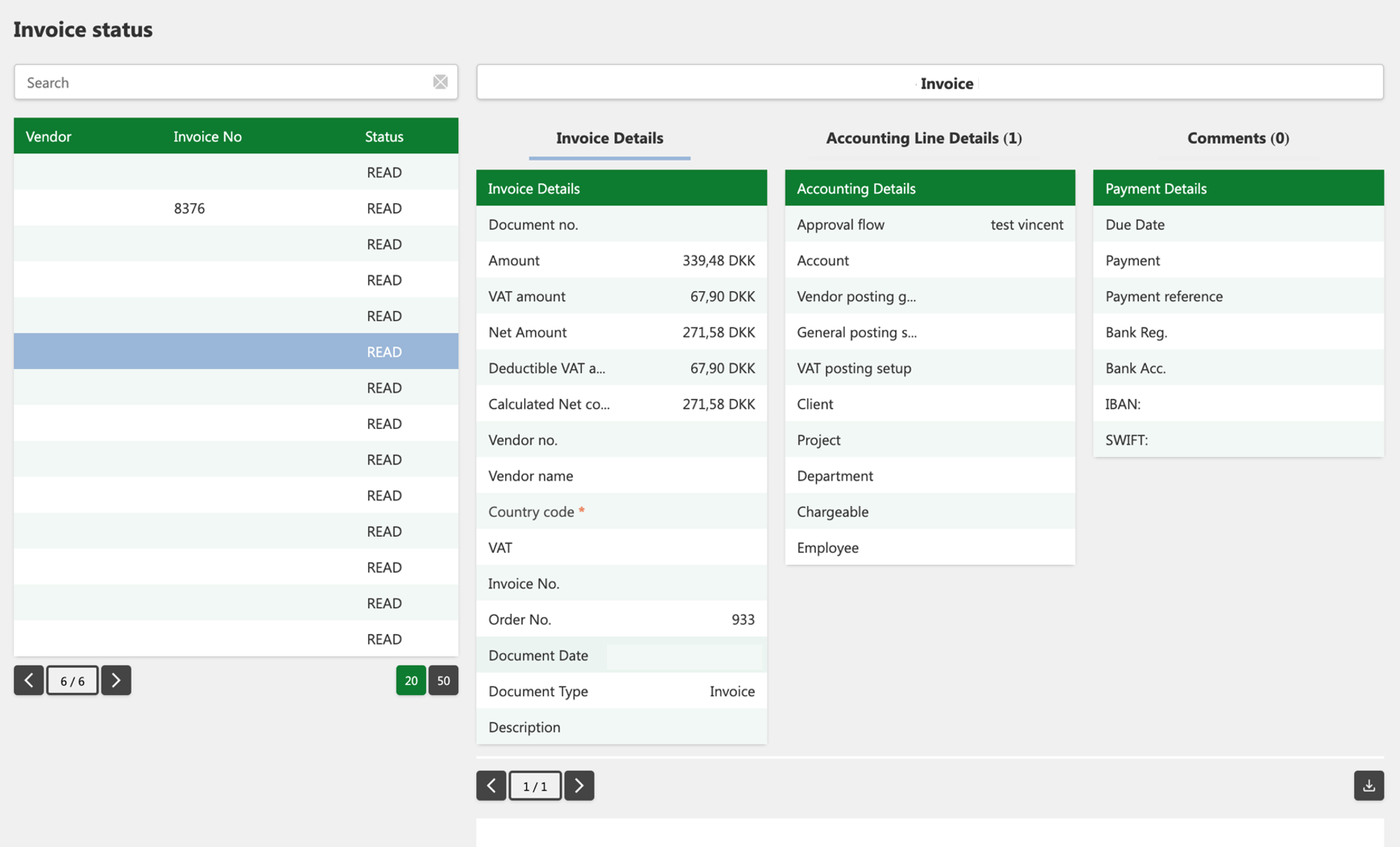
Please note that confidential information has been hidden from the image above.
General structure
The overall structure of the Status page follows the same principles as described under Received invoices. This ensures a consistent user experience and makes it easy to navigate and understand the functionality. You can find more information about the general page structure in the section on Received invoices.
Comments (Tab)
The comment feature allows users to access and review the activity associated with processing an invoice. In addition, users can add comments and attach documents if necessary in connection with the posting of the invoice. The comment field will show activity when an invoice is posted or sent for approval under sections such as approved invoices, invoice archive and invoice status.
The user can also attach supporting document files in the comments, such as a belonging invoice, payment document, etc for further explanation in the comments.

How to add a comment (and attach a supporting document)
-
Click on Purchase Invoices, and then click on Status.
-
Select an invoice from the table on the left.
-
Click on the Comment tab.
-
Press the Add button (a pop-up window will appear).
-
(Press the blue "Attach Supporting Document"-button to add a file
-
Select the desired document from your computer files.)
-
Enter your comment and click the Confirm button.
-
To undo, press Cancel in the pop-up window.
Button Overview

"Download" button: Used to download the invoice for further review.

Table navigation buttons: Used to navigate between pages in the table.

Buttons for the number of item views in the table: Allows adjustment to how many items are displayed per page (for example, 20 or 50).