Customer
The customer list contains all registered customers to whom the company currently sells items and issues invoices. This list provides a comprehensive overview of all customers used for invoicing.
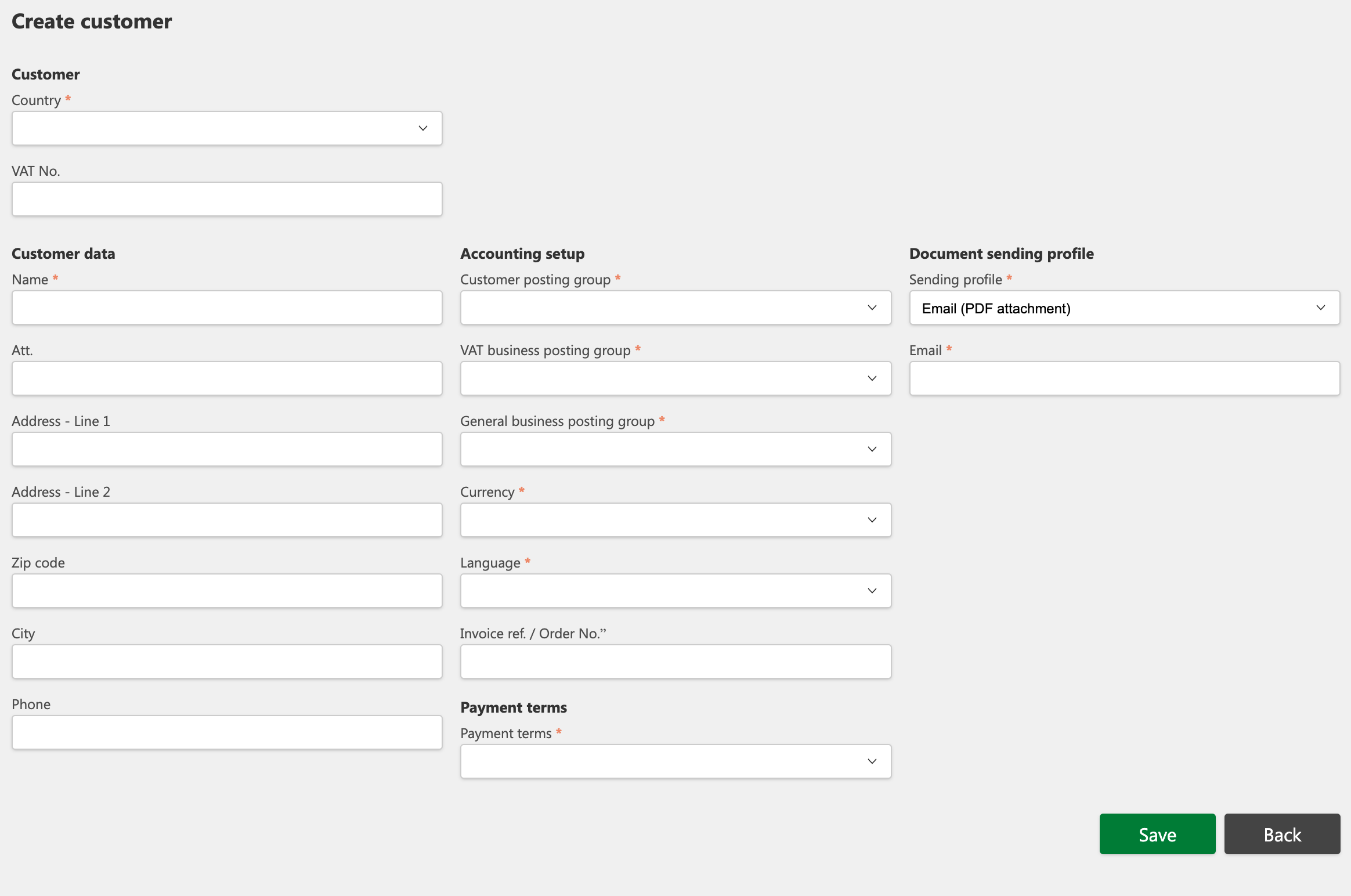
Before an invoice or credit note can be created for a customer, it must be registered in the system. To register a customer, the following minimum information is required:
-
VAT number
-
Country
-
Name
-
Customer posting group
-
VAT business posting group
-
General business posting group
-
Currency
-
Language (invoice)
-
Payment terms
-
Sending profile
-
Email
Note: Start by entering the VAT number. The system will automatically retrieve relevant information about the company and fill in the fields that it is capable of.

**Example of a customer list:
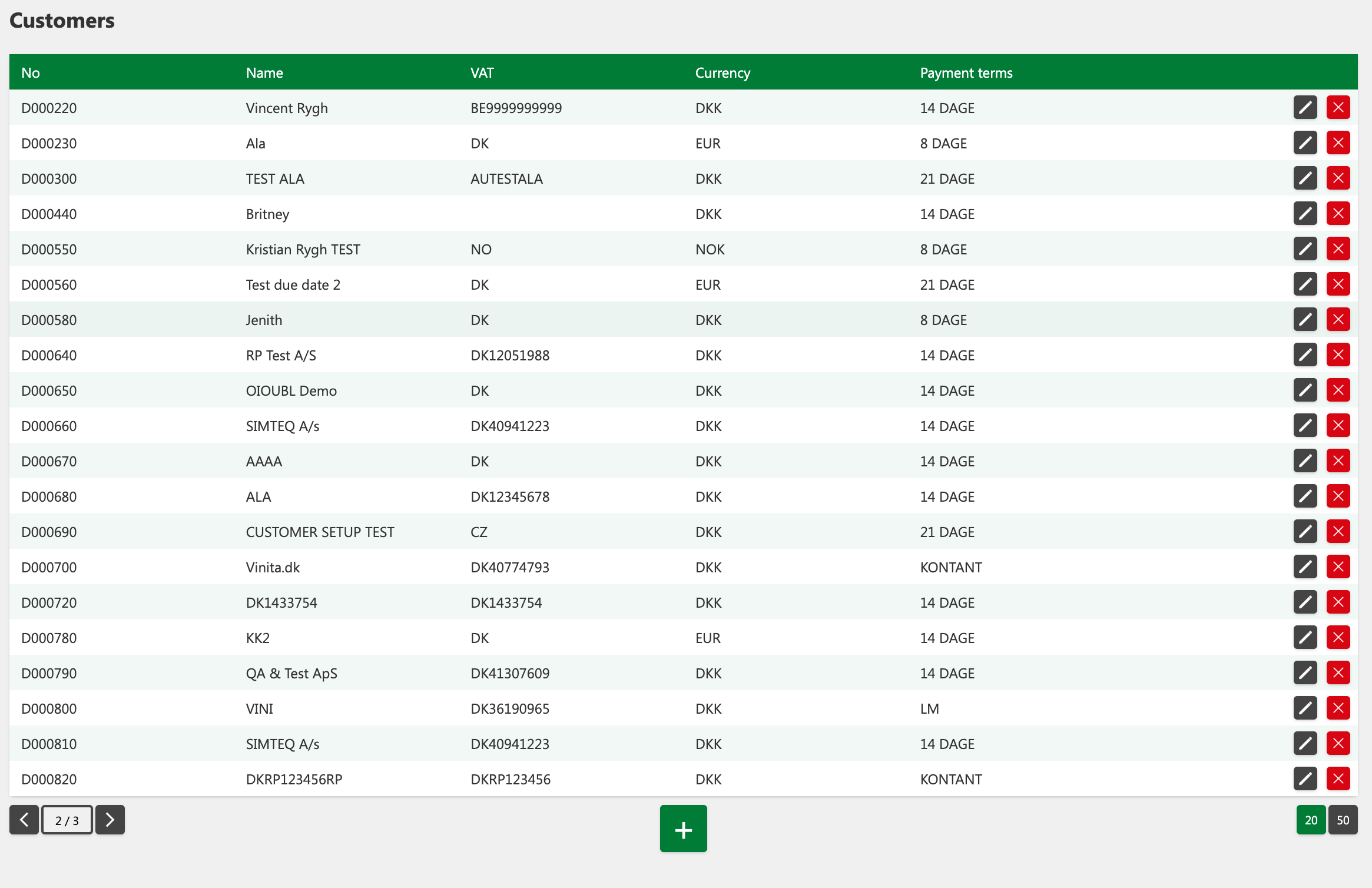

Navigation buttons and item display
Below the table, you'll find the following buttons that allow you to customize the display of the table:
-
The buttons on the left are used to navigate back and forth in the table.
-
The + button is used to create (add) a new customer.
-
The buttons on the right are used to select the display of the number of items in the table. The currently selected view is marked with a green color.

How to add a new customer
-
Press Sales from the menu, and then select Customers.
-
Click the + button below the table.
-
Fill in the required fields (marked with *) as a minimum.
-
Click Save.
-
If you regret creation, you can click Back.

How to edit an existing customer
-
Press Sales in the menu and select Customers.
-
Find the desired customer in the table.
-
Click the Edit button next to that customer.
-
Edit the required fields.
-
Click Save.
-
If you regret your changes, you can click Back.

How to delete an existing customer
-
Find the desired customer in the table.
-
Click the X (Delete) button next to that customer.
-
Confirm deletion via the pop-up window by clicking Confirm.
Alternative setup
It is possible to set up the following elements on behalf of a customer:
-
Dimensions: If this feature is enabled in "Sales invoice: Settings", you can add dimensions for that customer.
-
Approval flow: When an invoice or credit memo is submitted for approval, it will be sent to the specific approval setup made for the customer, instead of the general setup.
Button Overview

Edit: used to change customer information.

Bad: used to delete a customer.
Navigation buttons: allows you to navigate back and forth in the table.

Displays: allows you to choose how many customers are shown per page.

+ (add): used to add a new customer.

Confirm & Cancel: used to confirm or cancel an action, such as deleting a customer, respectively.