Approve payments
When a payment batch is created it goes for approval automatically. Bank → Approve payments shows the batches waiting for you.
The page is only available to users who may authorise payments, and the approvers for a given invoice are decided earlier — when the invoice is posted and prepared for payment.
Payments are approved together, in a batch. The whole batch is approved or rejected as one: you cannot decide on a single payment inside it.
Finding a batch
The search bar accepts any of:
- Vendor name
- Vendor number
- Payment type
- Payment reference
- Payment ID
- Reg. no.
- Number
The X in the search bar clears it for a new search.
The two tables
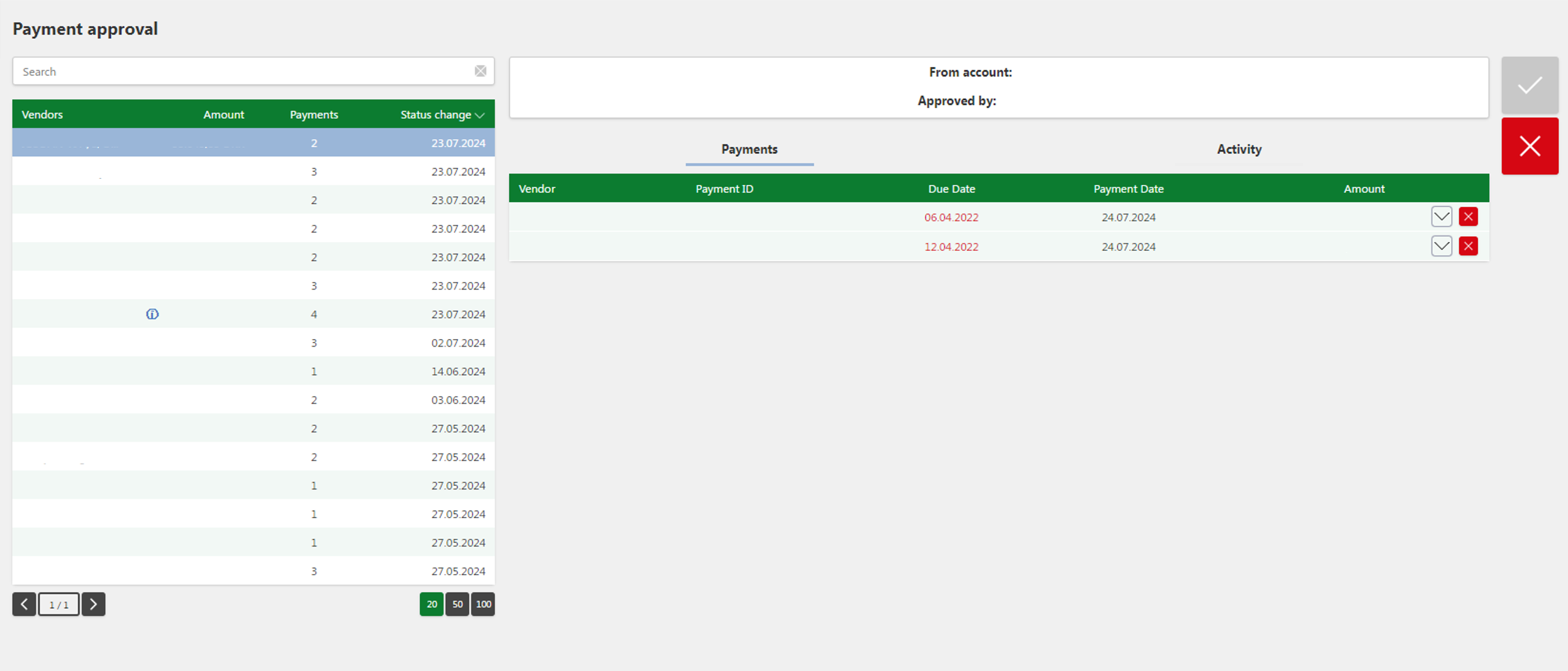
Confidential information has been hidden in the image above.
On the left: the batches. Each row shows the vendors, the total amount, the number of payments, and when the status last changed.
An ⓘ beside the total means it is estimated — typically because the batch mixes currencies.
Rows are not the same as payments
One vendor can have several invoices or attachments in the same batch, so the number of rows does not always match the number of payments.
On the right: the payments in the selected batch. Each payment has a unique payment ID, which is how you find it again in Create payments. Expand opens the full details and lets you download any attachments.
Before you can approve
Your user needs both a signing PIN and an OTP phone number in the company you are approving in, and a mandate on the account the batch is drawn from. If any is missing you cannot approve, and the page tells you which. An administrator has to correct the setup under User setup.
Approving one batch
- Click the batch to open its payments on the right.
- Review them. Use Expand to read a payment in full.
- Click the large green tick (✓) at the top right to approve, or the red ✗ to reject.
- Enter your PIN.
- Enter the one-time code sent to your phone.
If you entered a one-time code within the last five minutes, step 5 is skipped — including when that code was for a different batch.
Approving several at once
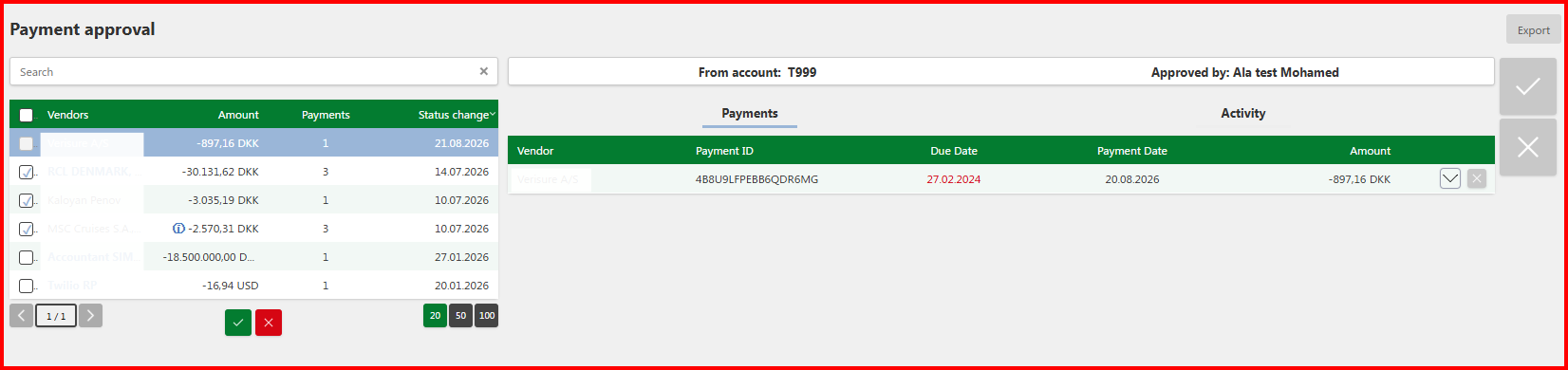
Tick the checkboxes next to the batches you want, then use the green tick or red ✗ below the table. You enter your PIN and one-time code once for the whole selection.
The bulk buttons only become active once at least one checkbox is ticked.
Bulk approval also works in Consolidated view, so you can approve across all your companies at the same time.
Quick rule: one batch → the big tick at the top right. Several → the buttons below the table.
Wait until a run already in progress has finished before starting another.
How many people must approve
One approver. The batch goes to the bank as soon as you have completed both steps.
Two approvers. Your approval is not enough. The batch waits for a colleague and is listed as awaiting a second approver. Who can be the second depends on your mandates.
Mandates: A, B and C
Every user holds a mandate on each individual bank account — A, B or C. The letters are not levels. They say who you may approve together with:
| Your mandate | May approve together with |
|---|---|
| A | A, B or C |
| B | A or C — not another B |
| C | A or B — not another C |
Two B-mandate holders cannot approve the same batch, and neither can two C-mandate holders. C exists so a company can require the second approver to come from a different department.
If a colleague has already approved the batch and your mandate is not compatible with theirs, you are told when you try, along with which mandate is needed instead.
Amount limits
Your approval may be limited by up to three limits on each bank account:
- Transaction limit
- The largest single payment you may approve.
- Batch limit
- The largest total in one batch.
- Daily limit
- The most you may approve in total in one day.
A limit that is not set is unlimited. If the batch exceeds even one of your limits, the approval is refused and you are told which. The batch is not partly approved and not split up — it has to be approved by someone whose limits cover it.
The bank account itself may also carry a daily limit that applies to all users together.
Amounts in foreign currency are converted before the limits are checked, so a limit applies across currencies.
What happens after
Approved. The batch moves to the payment archive, keeping the structure it had here. The archive is the historical record of approved batches.
Rejected. A reason is required. The batch is then dissolved: every payment reappears individually in Create payments as the original invoice or expense, with your reason attached to each one, so it is clear why it came back.
If something goes wrong
Wrong PIN or one-time code. You have three attempts per step.
A third failed attempt locks your user
If you use all three attempts, your user is locked and you are notified by email. An administrator has to unlock it before you can approve again. The batch is unchanged and can be approved afterwards.
The code expired. The PIN step is valid for one minute, the one-time code for two. If the time has run out, simply start the approval again.
"You do not have bank mandate rights." You can see the account but not approve from it. An administrator has to change the setup.
"This batch is not waiting for approval." It has already been dealt with — usually because a colleague got there first. Refresh the list.
"You have already approved this batch." It is now waiting for another approver, and you cannot approve it again.
The buttons
| Button | What it does |
|---|---|
 |
Expand — opens the full detail of a payment or receipt. |
 |
Download — saves the attachment to your device. |
 |
Table navigation — moves between pages of the table. |
 |
Rows per page — 10, 25 or 50. The active choice is highlighted green. |
 |
Approve — approves the batch so it can continue to the bank. |
 |
Reject — refuses the batch, for example on an error or missing documentation. |