Expense approval
An expense passes the bookkeeper and an approver before it is posted. Four pages cover that journey, and they share one layout: the list of expenses on the left, the receipt and its details on the right.
| Page | What you can do |
|---|---|
| Accounting | Correct, reject or delete receipts before they go for approval. |
| Approval | Approve or reject the expense as a whole. |
| Status | Read-only. Every expense in the company and where it stands. |
| Archive | Read-only. Posted expenses. |
Status and Archive are the Approval page without the action buttons.
The process
| Status | What happens |
|---|---|
| New | The employee has saved the expense. They can still delete it themselves. |
| Accounting | The bookkeeper checks the account, dimensions and documentation. |
| In approval | Waiting for an approver. |
| Posting | Approved and on its way to the ERP. |
| Posted | Posted in the ERP. |
| Rejected | Refused. The employee can delete it and reuse the receipts. |
An expense can also be diverted to be handled as a supplier invoice instead, in which case it continues in the purchase invoice module rather than here.
Accounting
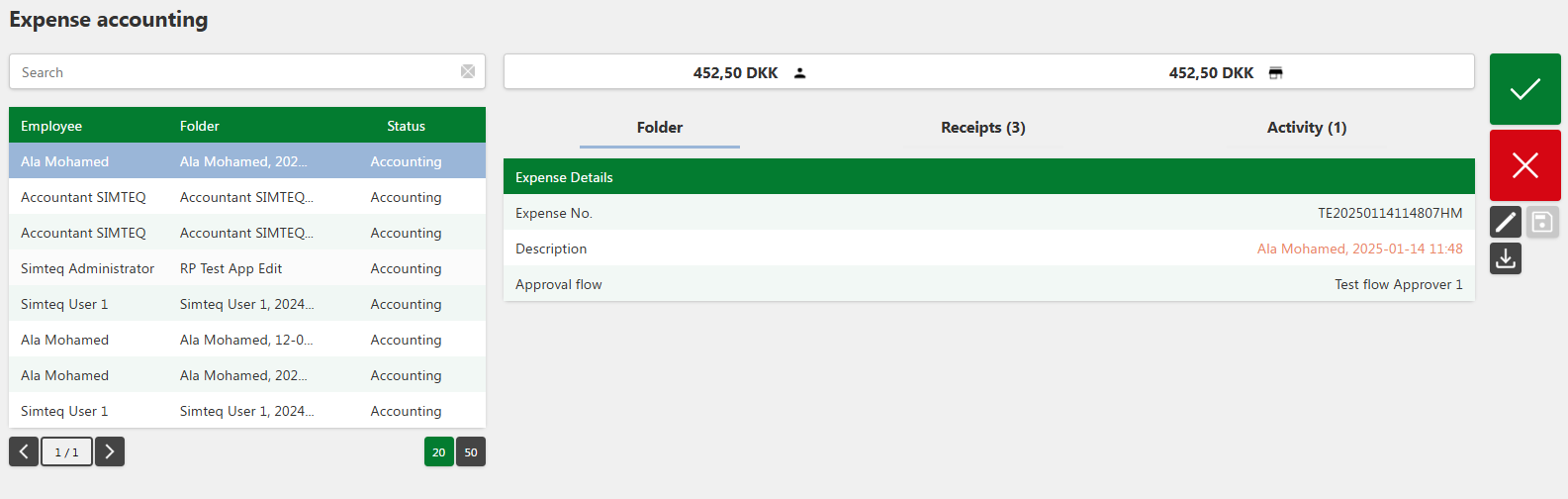
Turning on the accountant function gives that user the Accounting tab. It is laid out like the employee's own view but with wider rights: the bookkeeper can change or delete receipts before they go for approval, which matters where internal policy is to correct registrations before they enter the approval process.
Rejecting a single receipt
An expense can hold several receipts, and one can be rejected without touching the others.
- Go to the Accounting tab.
- Click the expense in the left table.
- Open the Receipts tab to see every receipt in it.
- Click the red ✗ beside the receipt in the right table.
Rejecting a whole expense
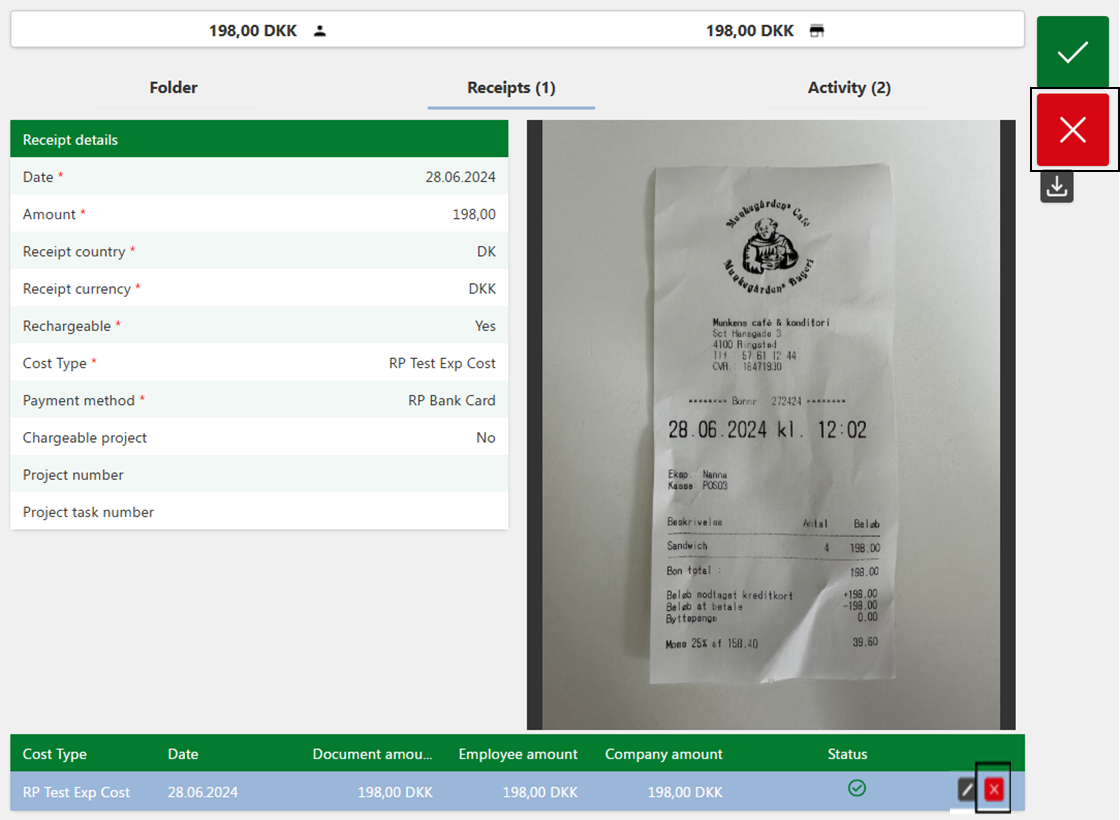
- Go to the Accounting tab.
- Click the expense in the left table.
- Click the red ✗ at the top right.
Approval
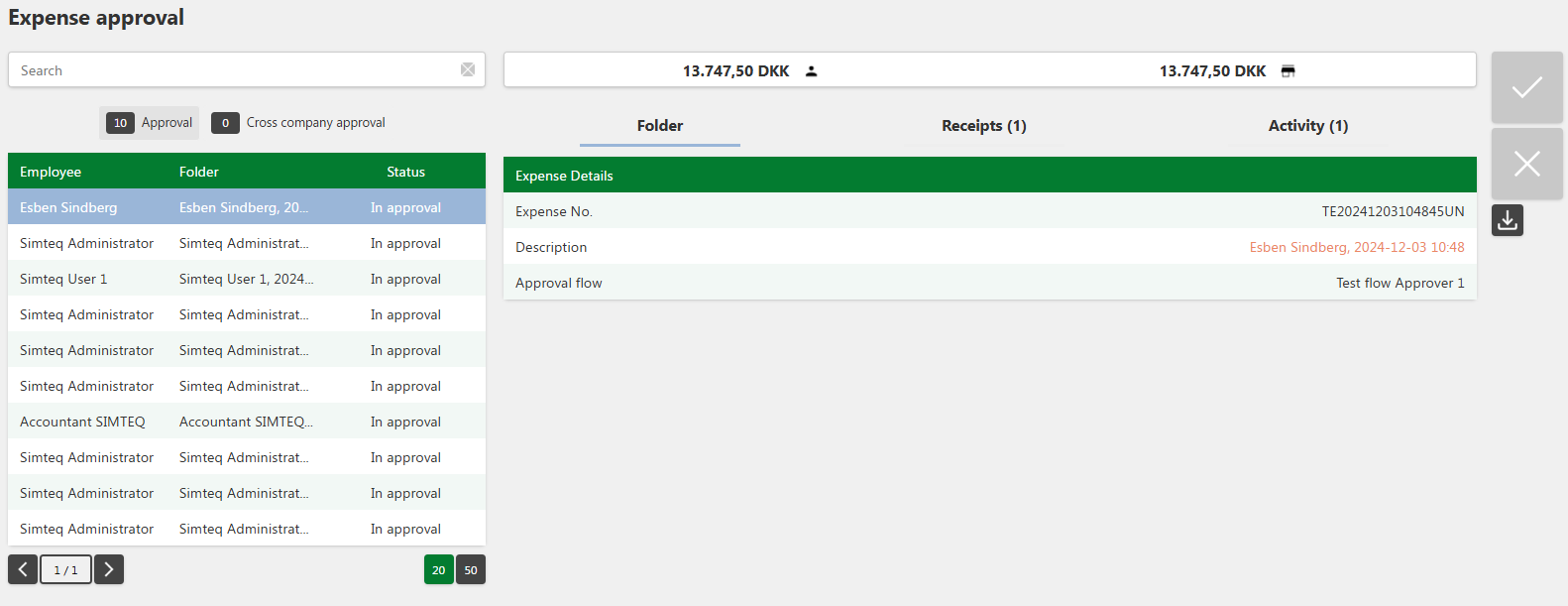
To approve: open the Approval tab, click the expense, and click the green Approve at the top right.
To reject: the same, but click the red Reject, give the reason in the window that opens, and confirm with the green button. The red ✗ cancels if you change your mind.
Once the expense has been posted in the ERP, the attached PDF shows the document together with the line description, cost type, cost type comment, business purpose comment, and any details collected by a cost type question.
Finding an expense
The search field accepts cost type, date or amount; the small x clears it. The filter buttons above the table work as they do on My expenses, each showing how many expenses it holds.
If you cannot act
- "You do not have permission to approve this expense." Your user lacks the right.
- "You do not have permission to reject this expense." The same applies to rejecting.
The rights are set up under User setup and Settings.
Card transactions
Where the expense was paid with a company card, the card transaction appears under Card transactions and can be linked to the receipt. The receipt has to exist before a transaction can be matched to it.