Settings
Sales settings include general information about your business, payment details that appears on the customer's invoice, and setting up accounting for individual items. The settings are therefore divided into the following tabs:
-
General
-
Invoice
-
Payment Details
-
Standard item
-
Dimension Setup
General
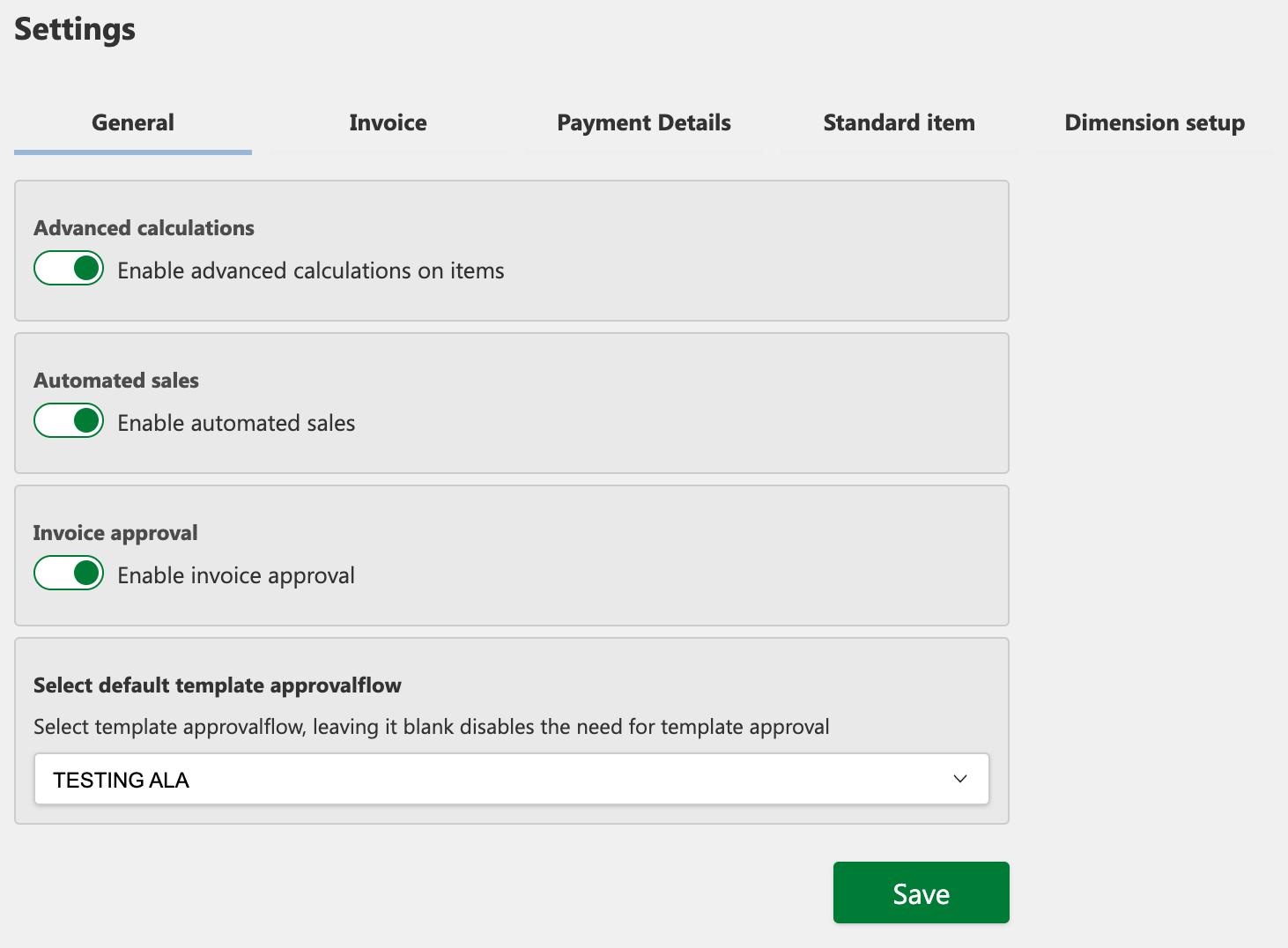
In the general settings, the following functions can be enabled:
-
Advanced calculations: When this feature is enabled, you are given the option to select advanced options in the item setup, giving you the flexibility to perform more complex calculations. This method allows you to define a more complex calculation, where the price can depend on several factors such as discounts, quantities, minimum amounts, or annual goals (YTD, Year-to-Date). This provides more flexibility for specific pricing settings for customers.
-
Automatic sales: When this feature is enabled, you can create invoice templates and run them automatically after they go through the approval process.
-
Invoice approval: Enabling this feature requires both invoices and credit memos to go through the approval process before they are sent to customers.
-
Default template approval flow: If an approval flow is selected, all created invoices, credit memos, invoice templates, and changes to invoice templates will be sent to the selected approval process, providing a structured and controlled handling of invoicing and templates.
Invoice
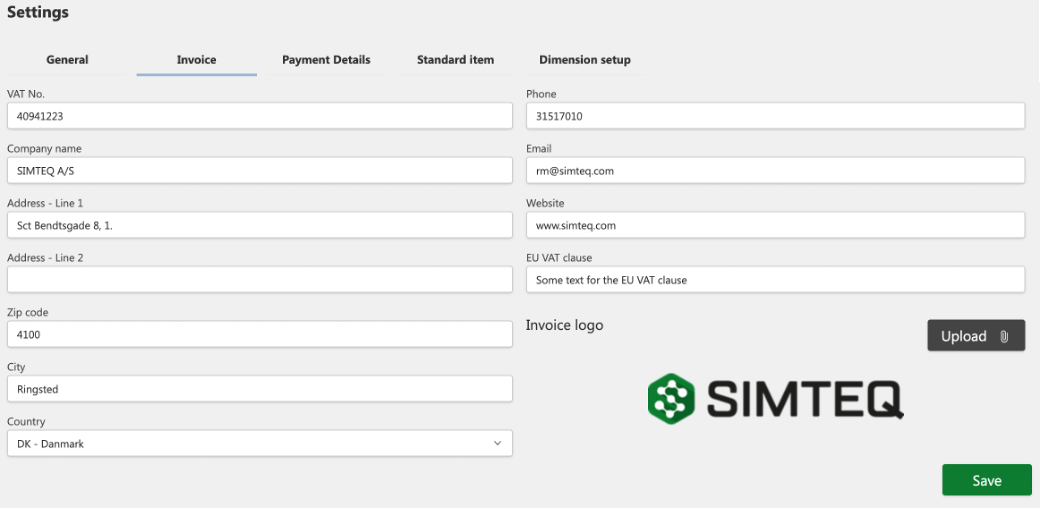
In the Invoice tab, you can define the following data about your company: All details defined in this section will automatically be displayed when you create an invoice or credit memo under Preview.
-
VAT number
-
Company Name
-
Address 1
-
Address 2
-
Zip code
-
City
-
Country
-
Phone
-
Email
-
Website
-
EU VAT clause (Specify a text that appears on the invoice for B2B transactions to businesses in other EU countries)
-
Upload button (Upload your company's logo, which appears on the draft invoice)

Payment Details
You can add multiple payment details, but only one can be marked as "Default". It's possible to have multiple active payment details, but they must be associated with different currencies. When you create an invoice, the system will automatically select the active payment details associated with the selected currency. For example, if you create an invoice with EUR as the currency, the system will use the EUR-account - if you have one. If not the "Default" account will be used, even if it's in a different currency.
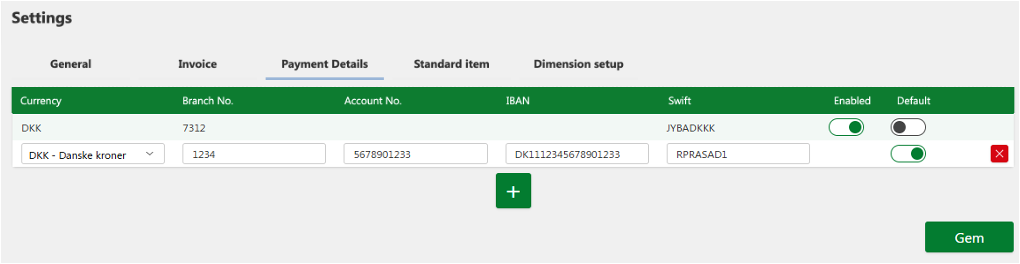
**Note that confidential information have been hidden from the picture above.

How to create a new payment method
-
Click on Sales invoice in the menu and select Settings.
-
Click Payment Details.
-
Click the + (Add) button.
-
Fill in the required fields: Currency, Branch. No., Account No., IBAN, SWIFT.
-
Click Save.

How to edit a payment method
-
Click on Sales invoice in the menu and select Settings.
-
Click Payment Details.
-
Find the existing payment details you want to edit.
-
Update the desired fields.
-
Click Save.

How to delete a payment method
-
Click on Sales in the menu and select Settings.
-
Click Payment Details.
-
Find the payment details you want to delete.
-
Click the X (Delete) button next to the desired line.
-
Click Save.
Standard item
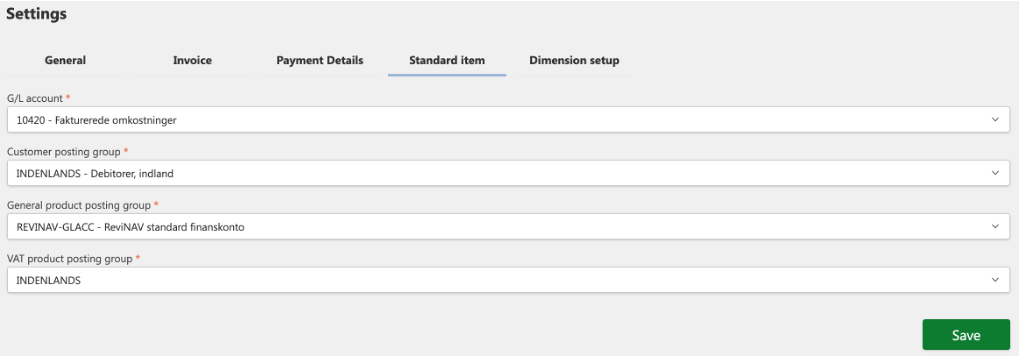
The standard item is a predefined setup that is used when no other settings are specified for a customer or item.

Why do I need to set up a standard item when I also define it for the individual items I create?
The system needs to know the standard setup that gets used for posting items that are not created and defined under "Items." When you create an invoice, the system will first search for the specific setups specified for the individual item. If there is no specific setup, the system will use the details from "Standard Item".

How to set up or edit standard item
-
Click on Sales invoice in the menu and select Settings.
-
Click the Standard item tab.
-
Click on the desired field and select the correct value.
-
Click Save.
Dimension Setup
It is possible to set up the following on for an item:
- Dimensions: If this feature is enabled in "Sales invoice settings", you can add dimensions for that item.
Button Overview

Delete: used to remove a payment method from the system.
Upload: Allows you to insert your company logo.

+ (add/create): Used to create a new customer in the system.

Unactive/Disabled: indicates that the feature is disabled.

Active/Enabled: indicates that the feature is enabled.